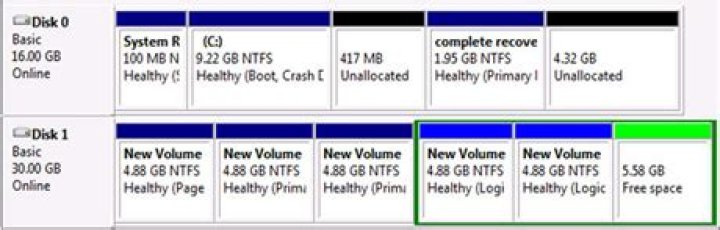
When it comes to managing disk partitions, understanding the differences between MBR (Master Boot Record) and GPT (GUID Partition Table) is crucial for optimizing your system's performance and reliability. Both partition styles have their own unique characteristics and use cases, making it essential to choose the one that best fits your needs. Whether you're setting up a new system or troubleshooting an existing one, having a solid understanding of MBR vs GPT can save you time and effort in the long run.
In this article, we'll delve deep into the world of disk partitioning, exploring the intricacies of MBR and GPT. We'll cover everything from their basic definitions to advanced technical details, ensuring you're equipped with the knowledge to make informed decisions about your storage setup.
By the end of this guide, you'll not only understand the technical differences between MBR and GPT but also how to apply this knowledge in practical scenarios. Let's dive in!
What is MBR?
MBR, or Master Boot Record, is a partitioning scheme that has been widely used since the early days of personal computing. It was introduced with IBM's PC DOS 2.0 in 1983 and has since become the standard for disk partitioning on many operating systems.
MBR works by storing partition information in the first sector of a hard drive, known as the boot sector. This sector contains a small amount of code that initializes the boot process and a partition table that describes how the disk is divided into partitions.
One of the key limitations of MBR is its inability to handle disks larger than 2 TB. Additionally, MBR supports a maximum of four primary partitions, which can be restrictive for complex storage configurations.
What is GPT?
GPT, or GUID Partition Table, is a newer partitioning scheme introduced as part of the UEFI (Unified Extensible Firmware Interface) standard. GPT addresses many of the limitations of MBR, making it a more versatile and reliable option for modern systems.
Unlike MBR, GPT uses a unique identifier for each partition, stored in a partition table located at the beginning and end of the disk. This redundancy enhances data integrity and makes GPT more robust against corruption.
GPT also supports disks larger than 2 TB and allows for up to 128 partitions per disk, providing greater flexibility for advanced users and enterprise environments.
MBR vs GPT: Structure Differences
The structural differences between MBR and GPT are significant and impact how data is stored and managed on a disk. Below are the key distinctions:
- Partition Table Location: MBR stores partition information in the first sector of the disk, while GPT uses a dedicated partition table with backup copies.
- Partition Limits: MBR supports up to four primary partitions, whereas GPT can handle up to 128 partitions.
- Data Integrity: GPT includes CRC (Cyclic Redundancy Check) values to detect and correct errors, a feature absent in MBR.
These structural differences make GPT a more robust and future-proof option for modern systems.
MBR vs GPT: Capabilities and Limitations
MBR Capabilities and Limitations
MBR is well-suited for older systems and smaller disks but falls short in several areas:
- Maximum Disk Size: Limited to 2 TB.
- Partition Limit: Only four primary partitions.
- Error Recovery: Lacks built-in mechanisms for error detection and recovery.
GPT Capabilities and Limitations
GPT offers several advantages over MBR, though it may not be compatible with all systems:
- Maximum Disk Size: Supports disks larger than 2 TB.
- Partition Limit: Up to 128 partitions.
- Error Recovery: Includes CRC checks for enhanced data integrity.
Despite its advantages, GPT may not be supported by older BIOS systems, requiring UEFI firmware for full functionality.
When to Use MBR
MBR is ideal for systems with the following characteristics:
- Older Hardware: Systems running on traditional BIOS firmware.
- Smaller Disks: Drives with capacities below 2 TB.
- Compatibility: Situations where backward compatibility with legacy systems is required.
For users who prioritize simplicity and compatibility over advanced features, MBR remains a viable option.
When to Use GPT
GPT is recommended for modern systems that require:
- Larger Disks: Drives exceeding 2 TB in capacity.
- Advanced Features: Enhanced data integrity and error recovery mechanisms.
- UEFI Support: Systems equipped with UEFI firmware for secure boot and improved performance.
With its robust design and scalability, GPT is the preferred choice for enterprise environments and power users.
Converting MBR to GPT
Converting an MBR disk to GPT can be done using tools like Diskpart in Windows or Gdisk in Linux. However, it's important to back up your data before proceeding, as the process may erase existing partitions.
Steps to Convert MBR to GPT in Windows:
- Open Command Prompt as an administrator.
- Type "diskpart" and press Enter.
- Select the disk you want to convert using the "select disk" command.
- Type "clean" to remove all partitions (ensure data is backed up).
- Type "convert gpt" to switch the disk to GPT format.
For Linux users, similar steps can be followed using Gdisk, ensuring data safety throughout the process.
Converting GPT to MBR
Converting a GPT disk to MBR follows a similar process but requires careful consideration of partition limits and disk size. Below are the steps for Windows:
- Open Command Prompt as an administrator.
- Type "diskpart" and press Enter.
- Select the disk using the "select disk" command.
- Type "clean" to remove all partitions (back up data first).
- Type "convert mbr" to switch the disk to MBR format.
Remember that converting GPT to MBR may limit the disk's capabilities, especially if it exceeds 2 TB in size.
MBR vs GPT: Performance Considerations
Performance differences between MBR and GPT are generally negligible for most users. However, in specific scenarios, GPT may offer advantages:
- Boot Speed: Systems using GPT with UEFI may experience faster boot times compared to MBR with BIOS.
- Data Integrity: GPT's error-checking mechanisms can reduce downtime caused by partition corruption.
- Scalability: GPT's ability to handle larger disks and more partitions makes it better suited for high-performance environments.
While these advantages are significant, they may not be noticeable for everyday users on smaller systems.
Final Thoughts
In conclusion, choosing between MBR and GPT depends on your system's requirements and the tasks you intend to perform. MBR is suitable for legacy systems and smaller disks, while GPT is the preferred choice for modern systems with larger storage needs and advanced features.
We encourage readers to explore their options carefully and consider the specific needs of their hardware and software environments. For further reading, check out our articles on disk management and system optimization.
Have any questions or insights to share? Leave a comment below or share this article with others who might find it helpful. Together, let's enhance our understanding of disk partitioning and improve our systems' performance!




