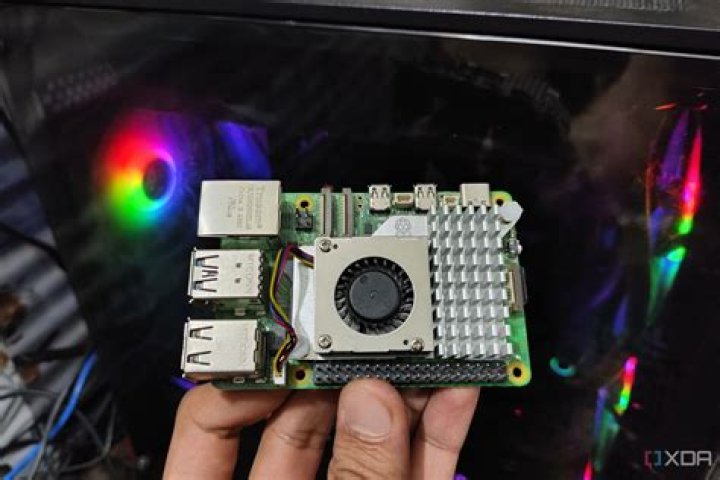
Setting up SSH on Raspberry Pi is a crucial step for remote access and managing your device efficiently. Whether you're a beginner or an advanced user, understanding SSH settings will enhance your experience with Raspberry Pi. This guide provides a detailed exploration of SSH settings, ensuring you have all the tools and knowledge to configure and secure your Raspberry Pi effectively.
SSH, or Secure Shell, is a network protocol that allows secure communication between devices over an unsecured network. For Raspberry Pi users, SSH enables remote access to the device, making it possible to manage and interact with the system from anywhere in the world. This capability is particularly valuable for projects that require off-site management or headless operations.
In this article, we'll walk you through everything you need to know about SSH settings on Raspberry Pi. From enabling SSH to securing your connection, we'll cover all aspects to ensure your setup is both functional and secure. Let's dive in and explore how you can harness the full potential of SSH for your Raspberry Pi projects.
Enabling SSH on Raspberry Pi
Enabling SSH on Raspberry Pi is the first step in setting up remote access. By default, SSH is disabled on Raspberry Pi OS to enhance security. However, enabling it is a straightforward process that can be done in several ways.
Method 1: Using Raspberry Pi Configuration
One of the easiest ways to enable SSH is through the Raspberry Pi Configuration tool. Follow these steps:
- Open the Raspberry Pi Configuration tool from the Preferences menu.
- Go to the Interfaces tab.
- Select "Enabled" next to SSH.
- Reboot your Raspberry Pi for the changes to take effect.
Method 2: Using Terminal Command
Alternatively, you can enable SSH using the terminal:
- Open the terminal on your Raspberry Pi.
- Type the following command and press Enter:
sudo raspi-config. - Select "Interfacing Options" and then "SSH".
- Choose "Yes" to enable SSH and confirm by selecting "OK".
Understanding SSH Basics
Before diving into the specifics of SSH settings, it's essential to understand the basics of SSH. Secure Shell (SSH) is a cryptographic network protocol that provides a secure way to access a remote computer. It uses encryption to protect data privacy and integrity, making it ideal for managing devices over the internet.
Key Features of SSH
- Encryption: SSH encrypts all data transmitted between the client and server, ensuring confidentiality.
- Authentication: SSH supports various authentication methods, including passwords and public-key authentication.
- Portability: SSH works across different operating systems, making it versatile for cross-platform use.
Connecting via SSH
Once SSH is enabled on your Raspberry Pi, you can connect to it from another computer using an SSH client. Here's how you can do it:
Using PuTTY (Windows)
PuTTY is a popular SSH client for Windows users. To connect:
- Download and install PuTTY from the official website.
- Open PuTTY and enter the Raspberry Pi's IP address in the "Host Name" field.
- Select "SSH" as the connection type and click "Open".
- Log in using your Raspberry Pi's username and password.
Using Terminal (macOS/Linux)
On macOS or Linux, you can use the built-in terminal to connect via SSH:
- Open the terminal and type:
ssh pi@. - Enter your Raspberry Pi's password when prompted.
Securing Your SSH Connection
Security is paramount when using SSH, especially if your Raspberry Pi is connected to the internet. Here are some tips to secure your SSH connection:
Change Default Settings
- Change the Default Password: Update the default "raspberry" password to a strong, unique one.
- Disable Root Login: Disable root login to prevent unauthorized access.
Use Public-Key Authentication
Public-key authentication is a more secure method than using passwords. Here's how to set it up:
- Generate a key pair on your local machine using
ssh-keygen. - Copy the public key to your Raspberry Pi using
ssh-copy-id pi@. - Disable password authentication in the SSH configuration file.
Troubleshooting Common SSH Issues
Even with proper setup, you might encounter issues while using SSH. Here are some common problems and their solutions:
Connection Refused
- Ensure SSH is enabled on your Raspberry Pi.
- Check the IP address and ensure it's correct.
- Verify that the SSH service is running by typing
sudo service ssh status.
Authentication Failed
- Double-check the username and password.
- Ensure public-key authentication is correctly set up if you're using it.
Advanced SSH Settings
For users who want to take their SSH setup to the next level, here are some advanced settings to consider:
Port Forwarding
Port forwarding allows you to map a local port to a remote port, enabling access to services on your Raspberry Pi from outside your local network.
SSH Tunneling
SSH tunneling creates a secure channel for transmitting data between your local machine and the Raspberry Pi. This is useful for accessing services like web servers or databases securely.
Raspberry Pi SSH Best Practices
To ensure optimal performance and security, follow these best practices for SSH settings on Raspberry Pi:
- Regularly update your Raspberry Pi OS to patch vulnerabilities.
- Use a firewall to restrict access to SSH from unauthorized IP addresses.
- Monitor SSH logs for suspicious activity using tools like Fail2Ban.
Headless Setup with SSH
Headless setup refers to configuring your Raspberry Pi without a monitor or keyboard. SSH plays a critical role in this process:
Steps for Headless Setup
- Create an empty file named "ssh" on the boot partition of your SD card.
- Insert the SD card into your Raspberry Pi and power it on.
- Find the Raspberry Pi's IP address on your network.
- Connect via SSH using the IP address.
Remote Access and SSH
SSH is one of the most reliable methods for remote access to Raspberry Pi. It allows you to manage files, run commands, and configure settings from anywhere in the world. To enhance remote access:
- Set up a static IP address for your Raspberry Pi.
- Use a dynamic DNS service to access your Raspberry Pi using a domain name.
- Consider using a VPN for added security.
Conclusion
SSH settings on Raspberry Pi are essential for remote management and security. By following the steps outlined in this guide, you can configure SSH effectively and securely, ensuring your Raspberry Pi projects run smoothly.
Remember to:
- Enable SSH using the appropriate method.
- Secure your SSH connection with strong passwords and public-key authentication.
- Adopt best practices for optimal performance and safety.
We encourage you to share your thoughts and experiences in the comments section below. If you found this guide helpful, don't hesitate to share it with others. For more Raspberry Pi tips and tricks, explore our other articles on the site.




