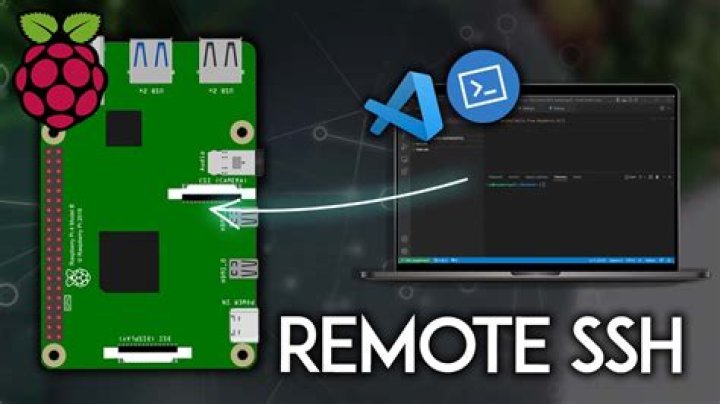
SSH Raspberry Pi remotely is an essential skill for anyone working with Raspberry Pi devices. Whether you're a developer, hobbyist, or professional, understanding how to establish a secure connection to your Raspberry Pi from a remote location can save you time and enhance your productivity. In this article, we will explore the step-by-step process of setting up remote SSH access for your Raspberry Pi.
With the increasing reliance on remote work and cloud computing, the ability to manage devices like Raspberry Pi remotely has become crucial. This guide will walk you through everything you need to know about SSH, from basic setup to advanced configurations.
By the end of this article, you'll have a solid understanding of how to configure SSH on your Raspberry Pi and connect to it securely from anywhere in the world. Let's dive in!
What is SSH?
SSH, or Secure Shell, is a cryptographic network protocol that allows users to securely access and manage remote devices over an unsecured network. It provides a secure method for logging into remote machines, executing commands, and transferring files.
SSH Raspberry Pi remotely is particularly useful for managing devices that do not have a physical display or keyboard. By using SSH, you can control your Raspberry Pi from any computer with an internet connection.
Some key features of SSH include:
- Encryption of data during transmission
- Authentication of users and devices
- Support for secure file transfers
Raspberry Pi SSH Setup
Initial Setup Requirements
Before setting up SSH Raspberry Pi remotely, ensure that your Raspberry Pi is properly configured. Here are the basic requirements:
- A Raspberry Pi device with Raspbian OS installed
- An active internet connection
- A computer or laptop with SSH client software installed
Once these requirements are met, you can proceed with enabling SSH on your Raspberry Pi.
Enabling SSH on Raspberry Pi
Using the Raspberry Pi Configuration Tool
To enable SSH on your Raspberry Pi, you can use the Raspberry Pi Configuration tool. Here's how:
- Open the terminal on your Raspberry Pi
- Type the command:
sudo raspi-config - Select "Interfacing Options" and navigate to "SSH"
- Choose "Enable" and exit the configuration tool
Alternatively, you can enable SSH by creating a file named "ssh" on the boot partition of your SD card. This method is especially useful if you don't have access to the Raspberry Pi's graphical interface.
Connecting to SSH
Using PuTTY for Windows
If you're using a Windows machine, PuTTY is a popular SSH client that you can use to connect to your Raspberry Pi. Follow these steps:
- Download and install PuTTY from the official website
- Launch PuTTY and enter the IP address of your Raspberry Pi in the "Host Name" field
- Set the port to 22 (default SSH port)
- Click "Open" to establish the connection
Once connected, you will be prompted to enter your Raspberry Pi's username and password.
Securing Your SSH Connection
Changing the Default SSH Port
For added security, consider changing the default SSH port (22) to a non-standard port. This can help prevent unauthorized access attempts. To change the SSH port:
- Open the SSH configuration file:
sudo nano /etc/ssh/sshd_config - Locate the line that says "Port 22" and change it to your desired port number
- Save the file and restart the SSH service:
sudo service ssh restart
Remember to update your SSH client settings to use the new port number when connecting.
Using SSH Keys for Authentication
Generating SSH Keys
Using SSH keys for authentication is a more secure alternative to password-based login. Here's how to generate SSH keys:
- Open the terminal on your local machine
- Type the command:
ssh-keygen -t rsa -b 4096 - Follow the prompts to save the key and set a passphrase (optional)
Next, copy the public key to your Raspberry Pi using the following command:
ssh-copy-id pi@raspberrypi
Now, you can log in to your Raspberry Pi using the SSH key instead of a password.
Troubleshooting SSH Issues
Common Problems and Solutions
Here are some common issues you might encounter when setting up SSH Raspberry Pi remotely, along with their solutions:
- Connection Refused: Ensure that SSH is enabled on your Raspberry Pi and that the IP address is correct.
- Authentication Failed: Double-check your username and password, or ensure that your SSH key is properly configured.
- Timeout Errors: Verify that your network connection is stable and that any firewalls are not blocking the SSH port.
If the problem persists, consult the official Raspberry Pi documentation for further assistance.
Remote SSH Access
Using a Dynamic DNS Service
To access your Raspberry Pi from outside your local network, you can use a dynamic DNS (DDNS) service. This allows you to assign a domain name to your Raspberry Pi's IP address, making it easier to connect remotely.
Some popular DDNS services include:
- No-IP
- DuckDNS
- Dynu
Follow the instructions provided by the DDNS service to configure it with your Raspberry Pi.
Advanced SSH Configurations
Setting Up Port Forwarding
If you want to access your Raspberry Pi from the internet, you may need to set up port forwarding on your router. This involves forwarding incoming traffic on a specific port to your Raspberry Pi's local IP address.
Steps to set up port forwarding:
- Log in to your router's admin interface
- Locate the port forwarding settings
- Enter the Raspberry Pi's local IP address and the desired SSH port
- Save the settings and test the connection
Always ensure that your router's firewall is configured to allow SSH traffic.
Conclusion
In this comprehensive guide, we've covered everything you need to know about SSH Raspberry Pi remotely. From basic setup to advanced configurations, you now have the tools and knowledge to securely manage your Raspberry Pi from anywhere in the world.
Remember to always prioritize security when setting up remote access. Use SSH keys, change default ports, and consider using a DDNS service for easier access.
We encourage you to share your thoughts and experiences in the comments below. If you found this article helpful, consider sharing it with others who might benefit from it. For more tutorials and guides, explore our other articles on the site!




