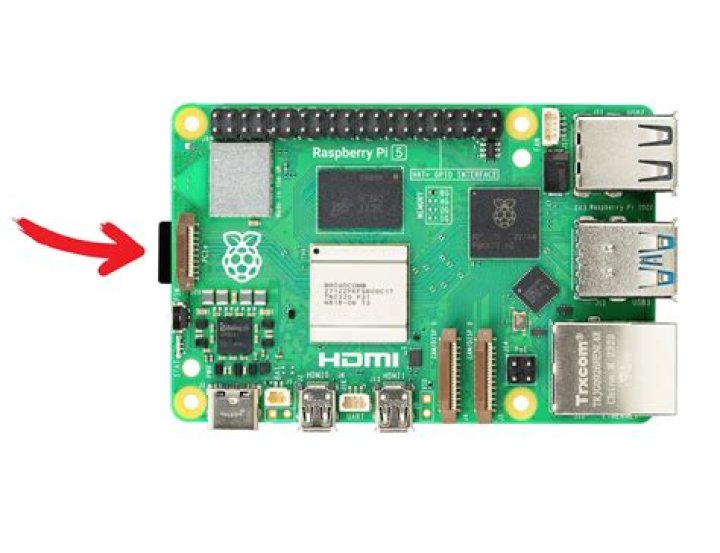
Learning how to SSH into a Raspberry Pi opens up endless possibilities for remote management, automation, and networking tasks. Whether you're a hobbyist tinkering with IoT projects or an advanced user configuring servers, SSH is a powerful tool that simplifies remote access. In this article, we'll explore everything you need to know about setting up and using SSH with Raspberry Pi.
Raspberry Pi has become one of the most popular single-board computers globally due to its affordability, versatility, and robust community support. One of the essential skills for working with Raspberry Pi is learning how to SSH into it. Secure Shell (SSH) allows you to connect to your device remotely, enabling you to manage it without needing physical access.
This guide will walk you through the process step-by-step, covering everything from enabling SSH on your Raspberry Pi to troubleshooting common issues. By the end of this article, you'll have a solid understanding of how to use SSH effectively and securely.
Introduction to SSH and Raspberry Pi
SSH, or Secure Shell, is a cryptographic network protocol that facilitates secure communication between devices over an unsecured network. When it comes to Raspberry Pi, SSH is invaluable for remote management and automation. Instead of needing a monitor, keyboard, and mouse, you can control your Raspberry Pi from any computer with an internet connection.
With the growing popularity of Raspberry Pi in various projects, from home automation to web servers, mastering SSH is essential. It not only simplifies management but also enhances security by encrypting all data exchanged between your device and the Raspberry Pi.
Understanding Raspberry Pi Basics
What is Raspberry Pi?
Raspberry Pi is a series of small single-board computers developed by the Raspberry Pi Foundation. Initially designed for educational purposes, it has since become a favorite among hobbyists, developers, and professionals for its versatility and affordability.
Why Use Raspberry Pi?
- Cost-effective solution for various projects
- Highly customizable and compatible with numerous peripherals
- Strong community support and extensive documentation
- Ideal for learning programming, networking, and hardware interfacing
How to Enable SSH on Raspberry Pi
Enabling SSH on your Raspberry Pi is straightforward, thanks to the built-in support in Raspberry Pi OS. Follow these steps to activate SSH:
Step 1: Access Raspberry Pi Configuration
Open the terminal on your Raspberry Pi and type the following command:
sudo raspi-config
Step 2: Navigate to Interfacing Options
Use the arrow keys to select "Interfacing Options" and press Enter. From there, choose "SSH" and enable it.
Step 3: Reboot Your Raspberry Pi
After enabling SSH, reboot your Raspberry Pi to apply the changes. You can do this by typing:
sudo reboot
Connecting to Raspberry Pi via SSH
Once SSH is enabled, you can connect to your Raspberry Pi from another computer using its IP address. Follow these steps:
Step 1: Find the Raspberry Pi IP Address
Use the terminal on your Raspberry Pi to find its IP address by typing:
hostname -I
Step 2: Use an SSH Client
On your computer, open an SSH client like PuTTY (Windows) or Terminal (Mac/Linux). Enter the following command:
ssh pi@
Replace
Best SSH Clients for Raspberry Pi
Choosing the right SSH client can enhance your experience when working with Raspberry Pi. Here are some of the best options:
- Terminal (Mac/Linux): Built-in SSH support for easy and fast connections.
- PuTTY (Windows): A popular and free SSH client with a user-friendly interface.
- Microsoft Remote Desktop (Windows/Mac): A versatile tool for remote connections.
- MobaXterm (Windows): An advanced SSH client with additional features like file transfer and X11 forwarding.
SSH Security Best Practices
While SSH provides secure communication, it's essential to follow best practices to protect your Raspberry Pi from unauthorized access:
1. Change the Default Password
The default username and password for Raspberry Pi are "pi" and "raspberry." Change these immediately to prevent unauthorized access.
2. Use SSH Keys Instead of Passwords
SSH keys offer a more secure method of authentication. Generate a key pair using the following command:
ssh-keygen
Then, copy the public key to your Raspberry Pi:
ssh-copy-id pi@
3. Disable Root Login
Restricting root access adds an extra layer of security. Edit the SSH configuration file:
sudo nano /etc/ssh/sshd_config
Set "PermitRootLogin" to "no" and restart the SSH service:
sudo systemctl restart ssh
Common SSH Issues and Troubleshooting
Even with proper setup, you might encounter issues when trying to SSH into your Raspberry Pi. Here are some common problems and their solutions:
Problem 1: Connection Refused
Ensure SSH is enabled on your Raspberry Pi and verify the IP address. Check if a firewall or router settings are blocking the connection.
Problem 2: Authentication Failed
Double-check your username and password. If you're using SSH keys, ensure the public key is correctly added to the authorized_keys file on your Raspberry Pi.
Automating SSH Connections
Automating SSH connections can save time and streamline workflows. Use scripts or tools like Ansible or Fabric to execute commands on multiple Raspberry Pi devices simultaneously. This is particularly useful for managing fleets of Raspberry Pi units in large-scale projects.
Advanced SSH Features for Raspberry Pi
SSH offers several advanced features that can enhance your Raspberry Pi experience:
1. Port Forwarding
Port forwarding allows you to securely access services running on your Raspberry Pi from remote locations. Configure it by editing the SSH configuration file:
sudo nano /etc/ssh/sshd_config
2. SFTP (Secure File Transfer Protocol)
SFTP is a secure way to transfer files between your computer and Raspberry Pi. Most SSH clients support SFTP, making it easy to manage files remotely.
Conclusion and Next Steps
Learning how to SSH into a Raspberry Pi is a crucial skill for anyone working with this versatile device. By following the steps outlined in this guide, you can set up SSH securely and efficiently, enabling you to manage your Raspberry Pi remotely with ease.
To further enhance your skills, consider exploring advanced topics like SSH tunneling, automation scripts, and integrating Raspberry Pi into larger networks. Don't forget to share this article with fellow Raspberry Pi enthusiasts and leave a comment below if you have any questions or feedback.
Stay tuned for more in-depth guides on Raspberry Pi and related technologies!




