Connecting to a Raspberry Pi without a router is an essential skill for anyone working with this versatile device. Whether you're setting up a headless Raspberry Pi or troubleshooting network issues, knowing how to establish a connection without a traditional router can save time and effort. In this article, we'll explore the methods, tools, and best practices for achieving this setup.
As the popularity of Raspberry Pi continues to grow, so does the need for more flexible and efficient ways to connect to it. Whether you're a hobbyist or a professional, understanding how to bypass the router can be incredibly useful in various scenarios. This guide will walk you through everything you need to know to establish a seamless connection.
By the end of this article, you'll have a thorough understanding of the different methods available, the tools required, and the troubleshooting tips to ensure a successful setup. Let's dive in!
Introduction to Raspberry Pi
The Raspberry Pi is a small, affordable computer that has become a favorite among developers, hobbyists, and educators. Its versatility allows users to create a wide range of projects, from home automation systems to media centers. Understanding how to connect to Raspberry Pi without a router is a valuable skill that can enhance your project's flexibility and functionality.
What Makes Raspberry Pi Unique?
Here are some key features that make Raspberry Pi stand out:
- Compact size and low power consumption
- Wide range of GPIO pins for hardware integration
- Support for multiple operating systems
- Active community and extensive documentation
Why Connect to Raspberry Pi Without Router?
Connecting to Raspberry Pi without a router can be beneficial in several scenarios. For instance, when setting up a headless Raspberry Pi, troubleshooting network issues, or working in environments where a router is unavailable. This method also allows for direct control over the device, reducing latency and improving performance.
Common Use Cases
Here are some common situations where connecting without a router is advantageous:
- Setting up a Raspberry Pi for the first time
- Troubleshooting network connectivity issues
- Creating a standalone device for specific applications
Method 1: Direct Ethernet Cable Connection
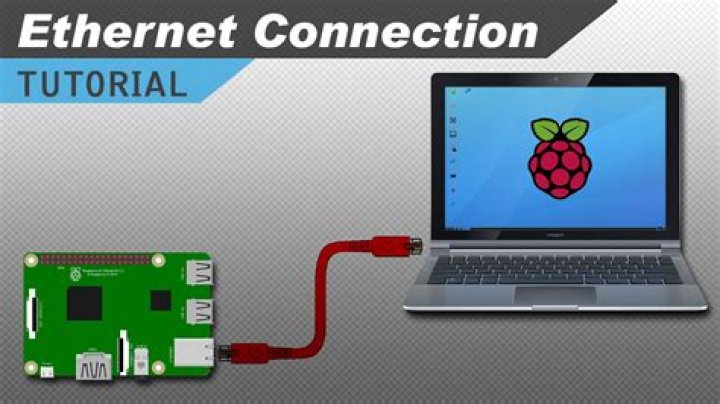
One of the simplest ways to connect to Raspberry Pi without a router is by using a direct Ethernet cable connection. This method requires minimal setup and ensures a stable connection between your computer and the Raspberry Pi.
Steps to Connect
- Connect one end of the Ethernet cable to your Raspberry Pi and the other end to your computer.
- Enable Internet Sharing on your computer to provide network access to the Raspberry Pi.
- Use an IP scanning tool to find the IP address assigned to your Raspberry Pi.
- Access the Raspberry Pi via SSH or VNC using the obtained IP address.
Method 2: Using WiFi Adapters
For wireless connectivity, using WiFi adapters is another effective way to connect to Raspberry Pi without a router. This method is particularly useful when working in environments where wired connections are not feasible.
Setting Up WiFi Adapters
To set up WiFi adapters:
- Plug a USB WiFi adapter into your Raspberry Pi.
- Configure the WiFi settings in the Raspberry Pi's operating system.
- Use a static IP address or DHCP to establish a connection between devices.
Method 3: USB Tethering
USB tethering allows you to share your computer's internet connection with your Raspberry Pi via a USB cable. This method is ideal for situations where both devices are in close proximity.
How to Enable USB Tethering
- Connect your Raspberry Pi to your computer using a USB cable.
- Enable USB tethering on your computer's network settings.
- Assign a static IP address to the Raspberry Pi for direct communication.
Method 4: VNC Remote Access
VNC (Virtual Network Computing) provides a graphical interface to remotely access and control your Raspberry Pi. This method is especially useful when working on projects that require visual interaction.
Setting Up VNC
To set up VNC:
- Install VNC Server on your Raspberry Pi.
- Install a VNC client on your computer.
- Connect to the Raspberry Pi using the VNC client and its assigned IP address.
Method 5: SSH Connection
SSH (Secure Shell) is a popular method for remotely accessing Raspberry Pi from a terminal. It offers a secure and efficient way to manage your device without the need for a graphical interface.
Steps to Establish SSH Connection
- Enable SSH on your Raspberry Pi by creating an empty file named "ssh" on the boot partition.
- Use an SSH client (e.g., PuTTY or Terminal) to connect to the Raspberry Pi's IP address.
- Log in using the default credentials or your custom username and password.
Troubleshooting Tips
Even with careful setup, issues can arise when connecting to Raspberry Pi without a router. Here are some troubleshooting tips to help resolve common problems:
- Ensure that both devices are on the same network.
- Verify the IP address assigned to the Raspberry Pi.
- Check firewall settings to ensure they are not blocking the connection.
- Restart both devices and try connecting again.
Tools and Software Required
To successfully connect to Raspberry Pi without a router, you may need the following tools and software:
- Ethernet cable or USB cable
- WiFi adapters (optional)
- VNC Server and client software
- SSH client (e.g., PuTTY)
Recommended Software
Here are some recommended software tools for connecting to Raspberry Pi:
- PuTTY - A popular SSH client for Windows.
- RealVNC - A reliable VNC solution for remote access.
- Nmap - A network scanning tool to find IP addresses.
Conclusion
Connecting to Raspberry Pi without a router is a valuable skill that can enhance your project's flexibility and efficiency. By using methods such as direct Ethernet cable connection, WiFi adapters, USB tethering, VNC remote access, and SSH connection, you can establish a stable and secure link to your device. Remember to follow the troubleshooting tips and utilize the recommended tools and software for the best results.
We encourage you to share your experiences and tips in the comments section below. Additionally, feel free to explore other articles on our website for more insights into Raspberry Pi and related technologies. Happy tinkering!