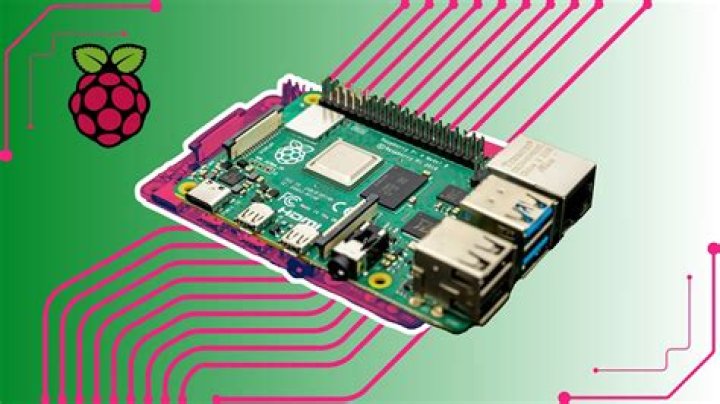
Connecting to your Raspberry Pi remotely opens up a world of possibilities, from managing servers to automating tasks. Whether you're a hobbyist or a professional, remote access is an essential skill that every Raspberry Pi user should master. In this article, we'll explore the best methods to connect to your Raspberry Pi remotely, ensuring seamless and secure access from anywhere in the world.
Remote access to your Raspberry Pi allows you to control your device without needing to be physically present. Whether you're troubleshooting issues, accessing files, or managing applications, remote connectivity is indispensable. In today's fast-paced world, having the ability to manage your Raspberry Pi remotely can save you time and effort.
This guide is designed to help you understand the tools, methods, and best practices for connecting to your Raspberry Pi remotely. By the end of this article, you'll have the knowledge and confidence to set up remote access securely and efficiently. Let's dive in!
Introduction to Remote Access
Remote access to your Raspberry Pi allows you to interact with your device from another computer or device, regardless of location. This capability is particularly useful for managing headless setups, where the Raspberry Pi operates without a monitor, keyboard, or mouse. Understanding the basics of remote access is crucial for getting started.
Why Remote Access Matters
Remote access enables you to:
- Manage files and applications without physical access.
- Troubleshoot and resolve issues from anywhere.
- Automate tasks and monitor your Raspberry Pi's performance.
By leveraging remote access, you can increase your productivity and reduce downtime. Let's explore the most popular methods for connecting to your Raspberry Pi remotely.
Using SSH to Connect to Raspberry Pi Remotely
SSH (Secure Shell) is one of the most widely used methods for remote access. It provides a secure and encrypted connection between your computer and Raspberry Pi, allowing you to execute commands and manage files remotely.
Enabling SSH on Raspberry Pi
To enable SSH on your Raspberry Pi, follow these steps:
- Open the Raspberry Pi Configuration tool:
sudo raspi-config. - Select "Interfacing Options" and enable SSH.
- Reboot your Raspberry Pi:
sudo reboot.
Connecting via SSH
Once SSH is enabled, you can connect to your Raspberry Pi using an SSH client. On Windows, you can use PuTTY, while macOS and Linux users can use the terminal.
Command to connect via SSH: ssh pi@your-raspberry-pi-ip-address.
Connecting via VNC for a Graphical Interface
While SSH is great for command-line access, VNC (Virtual Network Computing) allows you to access the graphical desktop of your Raspberry Pi remotely. This is particularly useful for tasks that require a graphical interface.
Setting Up VNC Server
To set up VNC on your Raspberry Pi:
- Install VNC Server:
sudo apt-get install realvnc-vnc-server realvnc-vnc-viewer. - Enable VNC in the Raspberry Pi Configuration tool.
- Reboot your Raspberry Pi.
Connecting via VNC Viewer
Download and install the VNC Viewer application on your computer. Enter your Raspberry Pi's IP address to connect and access the graphical desktop remotely.
Setting Up Your Network for Remote Access
Proper network configuration is essential for successful remote access. This section covers the basics of setting up your network to allow remote connections.
Obtaining Your Raspberry Pi's IP Address
Find your Raspberry Pi's IP address using the following command:
hostname -I.
Port Forwarding
If you're connecting to your Raspberry Pi from outside your local network, you'll need to set up port forwarding on your router. Forward the necessary ports (e.g., 22 for SSH) to your Raspberry Pi's IP address.
Ensuring Secure Remote Connections
Security is paramount when setting up remote access. Here are some tips to ensure your connections remain secure:
- Use strong, unique passwords for your Raspberry Pi.
- Enable two-factor authentication (2FA) whenever possible.
- Regularly update your Raspberry Pi's software and firmware.
Using SSH Keys for Authentication
Instead of relying on passwords, you can use SSH keys for secure authentication. Generate an SSH key pair and add the public key to your Raspberry Pi's authorized_keys file.
Essential Tools for Remote Access
Several tools can enhance your remote access experience. Here are some of the most popular ones:
- Putty: A popular SSH client for Windows.
- VNC Viewer: A graphical remote access tool for Raspberry Pi.
- ngrok: A tool for exposing local servers to the internet securely.
Choosing the Right Tool
Selecting the right tool depends on your specific needs. For command-line access, SSH is ideal, while VNC is better suited for graphical tasks. Tools like ngrok can be useful for testing and development purposes.
Troubleshooting Common Issues
Even with proper setup, issues can arise when trying to connect to your Raspberry Pi remotely. Here are some common problems and their solutions:
- Connection Refused: Ensure SSH or VNC is enabled and the correct IP address is used.
- Timeout Errors: Check your network configuration and ensure port forwarding is set up correctly.
- Authentication Failures: Verify your credentials and ensure SSH keys are configured properly.
Automating Remote Connections
Automating remote connections can save time and streamline your workflow. Use scripts and tools like SSH keys to automate tasks such as file transfers and command execution.
Creating SSH Scripts
Write a simple script to automate SSH connections:
ssh pi@your-raspberry-pi-ip-address "sudo apt-get update && sudo apt-get upgrade -y".
Alternative Methods for Remote Access
Beyond SSH and VNC, several alternative methods exist for remote access:
- TeamViewer: A user-friendly remote access tool with cross-platform support.
- AnyDesk: Another popular option for remote desktop access.
- Web-Based Solutions: Tools like Flask or Django can create web interfaces for remote management.
Choosing the Best Method
The best method depends on your use case. For simplicity, VNC or TeamViewer may suffice, while more advanced users might prefer custom web-based solutions.
Conclusion and Next Steps
Connecting to your Raspberry Pi remotely is a powerful capability that enhances its utility and flexibility. By mastering SSH, VNC, and other remote access methods, you can manage your Raspberry Pi from anywhere in the world. Remember to prioritize security and regularly update your setup to prevent unauthorized access.
We encourage you to try out the methods discussed in this article and share your experiences in the comments below. For more tutorials and tips on Raspberry Pi, explore our other articles. Stay connected and keep learning!




